
Word中添加图片时自动添加图片名
1.打开Word中“查看宏”
2.新建宏
3.运行宏
{dotted startColor="#ff6c6c" endColor="#1989fa"/}
当Word中需要添加大量图片时,并要显示图片名称时可以采用以下编辑宏进行快速插入,下边讲述一下快速插入的具体方法。
1.打开Word中“查看宏”
在word的搜索栏中直接搜索“查看宏”
在这里插入图片描述
2.新建宏
新建一个宏并将下面代码复制粘贴
在这里插入图片描述
相关参数已标注,可以根据需要自行修改
Sub InsertPic()
    Dim myfile As FileDialog
    Set myfile = Application.FileDialog(msoFileDialogFilePicker)
    With myfile
        .InitialFileName = "F:"
        If .Show = -1 Then
            For Each fn In .SelectedItems

                Set mypic = Selection.InlineShapes.AddPicture(FileName:=fn, SaveWithDocument:=True)
                '按比例调整相片尺寸
                WidthNum = mypic.Width
                c = 10         '在此处修改相片宽,单位厘米
                mypic.Width = c * 28.35
                mypic.Height = (c * 28.35 / WidthNum) * mypic.Height
                If Selection.Start = ActiveDocument.Content.End - 1 Then  '如光标在文末
                    Selection.TypeParagraph    '在文末添加一空段
                Else
                    Selection.MoveDown
                End If
                Selection.Text = Basename(fn)    '函数取得文件名
                Selection.EndKey

                If Selection.Start = ActiveDocument.Content.End - 1 Then  '如光标在文末
                    Selection.TypeParagraph    '在文末添加一空段
                Else
                    Selection.MoveDown
                End If
            Next fn
        Else
        End If
    End With
    Set myfile = Nothing
End Sub
Function Basename(FullPath)    '取得文件名
    Dim x, y
    Dim tmpstring
    tmpstring = FullPath
    x = Len(FullPath)
    For y = x To 1 Step -1
        If Mid(FullPath, y, 1) = "" Or _
           Mid(FullPath, y, 1) = ":" Or _
           Mid(FullPath, y, 1) = "/" Then
            tmpstring = Mid(FullPath, y + 1)
            Exit For
        End If
    Next
    Basename = Left(tmpstring, Len(tmpstring) - 4)
End Function
3.运行宏
运行宏并选择图片所在位置
在这里插入图片描述
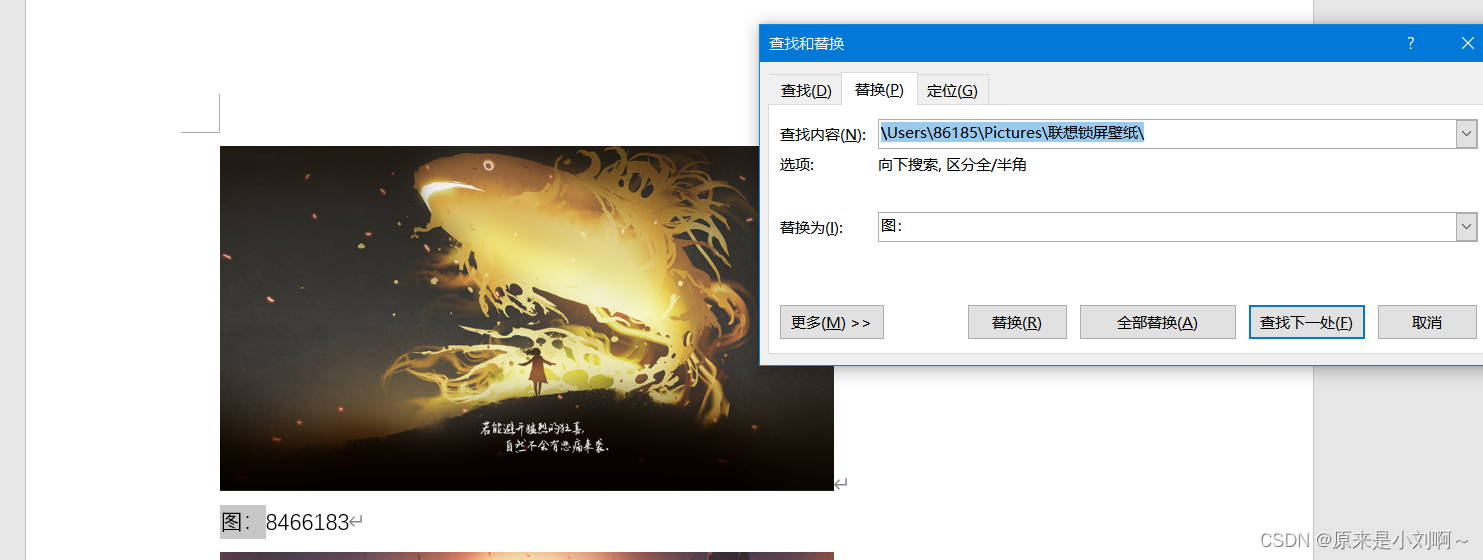
最后通过替换功能删除文件目录
在这里插入图片描述
©版权声明
THE END




暂无评论内容